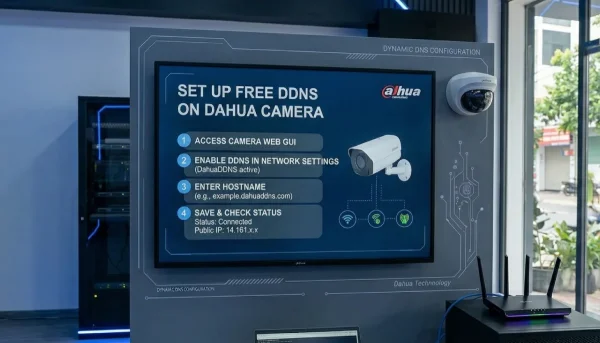
How Dahua Auto Register Works with FastDDNS
Dahua Auto Register is a built-in feature on many Dahua devices. Instead of waiting for a DDNS client to poll for IP changes, the device itself initiates an outbound connection to a registration server every few minutes. Each time it connects, it reports its current public IP address.
FastDDNS receives this report and automatically updates your hostname to point to the new IP. The result is the same as native DDNS — your hostname always resolves to the correct address — but the mechanism works even on devices that have no DDNS menu at all.
What this means for you practically:
- FastDDNS provides 3 values: Server IP, Port, and Device ID
- You paste those values into the Register screen on your Dahua device
- The device connects outbound to FastDDNS on its own — no configuration on your router for port 8888 is required
- Your hostname stays updated automatically from that point forward
When to Use Auto Register
Use this method when your Dahua device does not have a DDNS option under its Network settings. This is common on:
- Older Dahua DVR and NVR models with limited firmware
- Some Dahua IP cameras with restricted network menus
- Devices where the DDNS section exists but does not list a compatible provider
If your device already has a working Network → DDNS menu, use that instead— read: How to Install FastDDNS on Dahua IP Camera, NVR, and DVR.
DDNS vs Auto Register — Quick Comparison
| DDNS | Auto Register | |
|---|---|---|
| Requires the DDNS menu on the device | Yes | No |
| Setup steps | 4–5 steps | 3 steps |
| Needs port 8888 open inbound | No | No |
| The device connects outbound to the server | Yes | Yes |
| Stability | High | Good |
| Recommended when | DDNS menu exists | No DDNS menu |
| Works with FastDDNS | Yes | Yes |
What You Need Before Starting
- A hostname registered at FastDDNS — free registration, takes under 1 minute
- A Dahua camera, DVR, or NVR with the Register (or Auto Register) option under Network settings
- Local network access to your device's web interface
- Your device login credentials
That is all. No special router configuration is needed for this step.
Step-by-Step Setup
Step 1 — Get your credentials from FastDDNS
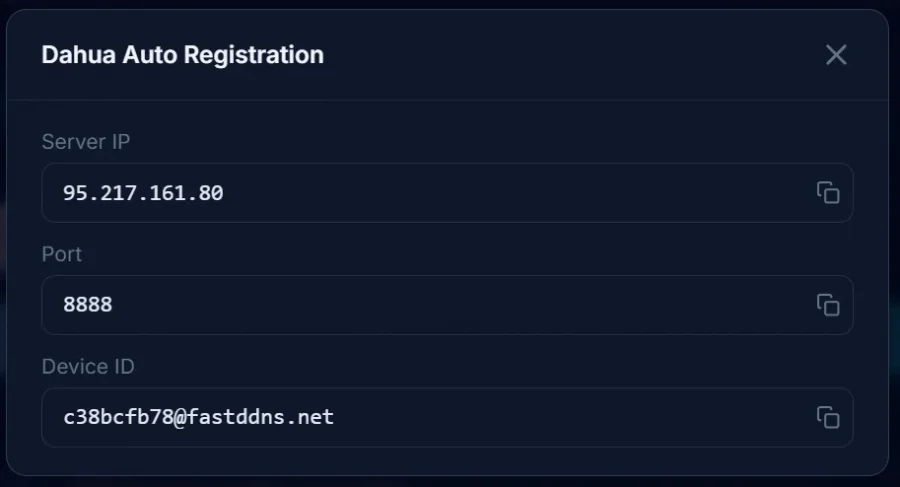
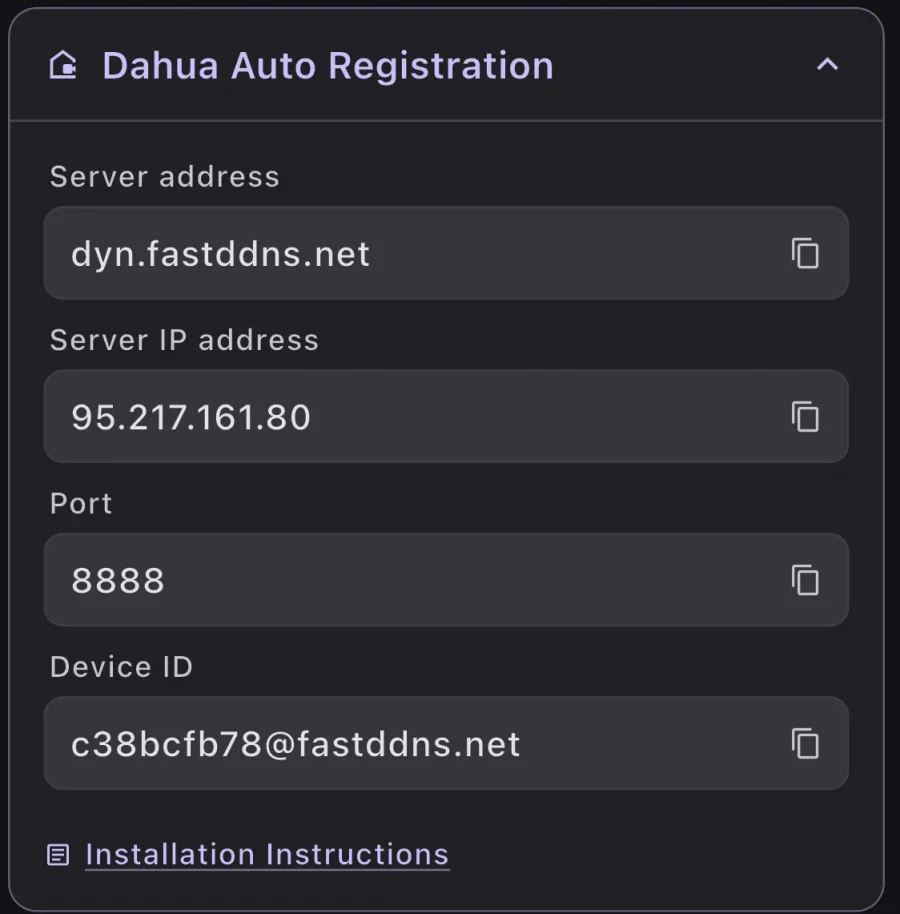
Log in to your account at FastDDNS. Navigate to your hostname and open the Dahua Auto Registration panel. FastDDNS displays three ready-to-use values:
- Server IP: e.g. .
95.217.161.80 - Port:
8888 - Device ID: e.g.
c38bcfb78@fastddns.net
(See image below — this is the exact screen FastDDNS shows you)
 |
 |
Keep this panel open. You will copy these values directly into your device in the next step.
Step 2 — Open the Register screen on your Dahua device
Access your device's web interface by typing its local IP address into a browser on the same network:
http://192.168.1.108If you don't know your device's internal IP address, use the Fastddns app on Android or iOS to run the IP Scanner and find your device's IP address.
Log in with your admin credentials, then navigate to:
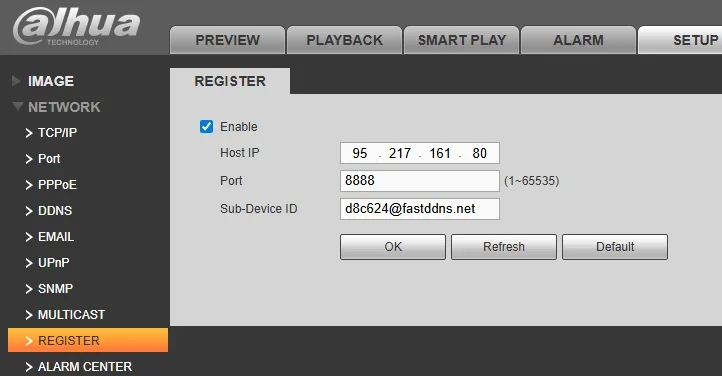
Setup → Network → Register
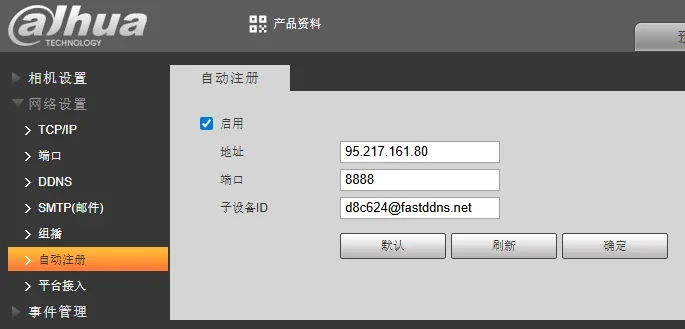
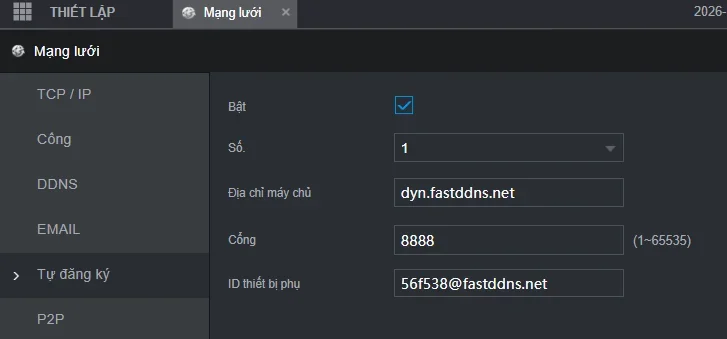
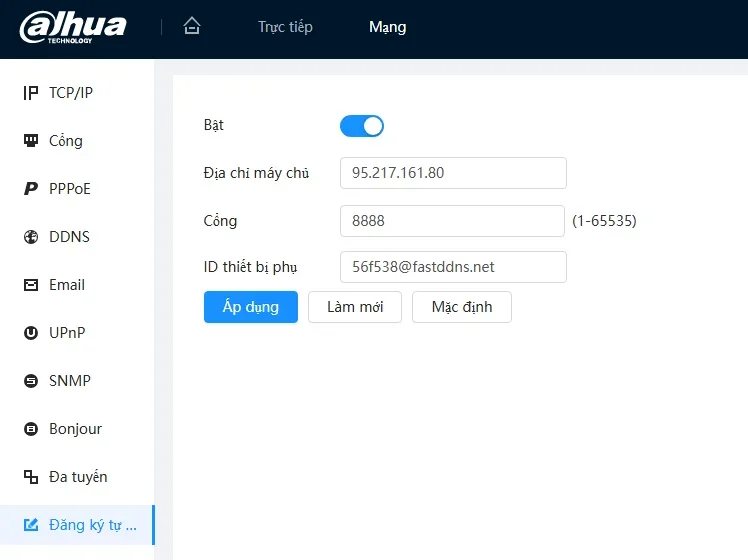
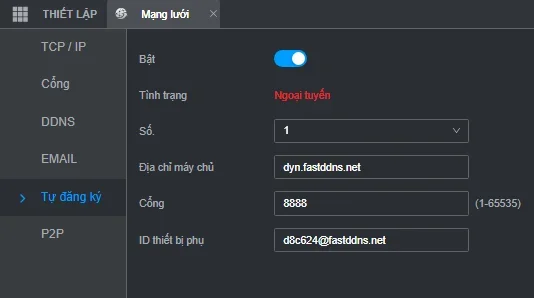
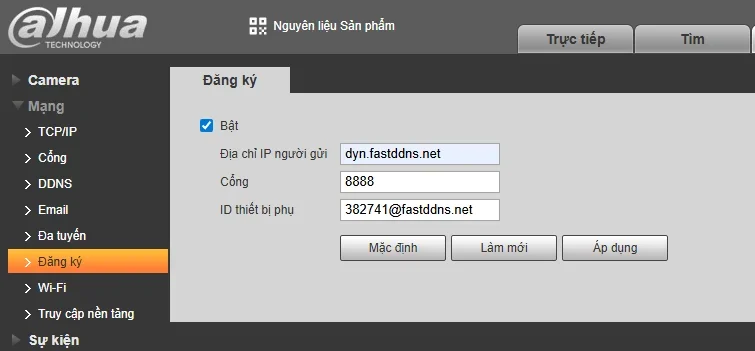
You will see a screen with three input fields and an Enable checkbox.
Step 3 — Fill in the fields
Check the Enable box, then enter:
- Host IP: paste the Server IP from FastDDNS (e.g.,
95.217.161.80) - Port:
8888 - Device ID: paste the Device ID from FastDDNS (e.g.
d8c624@fastddns.net)
Click OK to save.
Step 4 — Verify the hostname is updating
Wait 1–2 minutes, then return to your FastDDNS dashboard. Check that your hostname now shows your current public IP address. You can confirm your public IP by visiting Fastddns port check from the same network as your device.
Once the hostname reflects the correct IP, your setup is complete. The device will continue to report its IP address to FastDDNS automatically — no further action needed.
Troubleshooting
Hostname is not updating after saving.
Check first: Confirm that the Enable checkbox was checked before clicking OK. Navigate away and return to Network → Register to verify the settings were saved correctly.
Check second: Make sure the Host IP, Port, and Sub-Device ID were entered exactly as shown in your FastDDNS dashboard — no extra spaces or characters.
The device saved the settings, but it is still not connecting
Some older Dahua firmware versions require a full device reboot before Auto Register activates. Reboot the device from Main Menu → System → Reboot, then wait 2 minutes and recheck the dashboard.
Hostname updates, but I still cannot access the camera remotely
Auto Register only updates your hostname record. To access the device remotely, you still need to forward the appropriate port on your router — typically 37777 (Dahua data port) or 80/443 (web access) — to your device's local IP address. This is separate from the Auto Register connection on port 8888. Refer to your router's documentation for instructions on port forwarding.
I see "Register," but the fields look different from the screenshots
Dahua firmware varies by model and version. Some devices label the section "Auto Register" rather than "Register," and field names may differ slightly (e.g., "Server Address" instead of "Host IP"). The logic is identical — enter the Server IP, Port 8888, and your Device ID from FastDDNS regardless of how the fields are labelled.
Frequently Asked Questions
Do I need to forward port 8888 on my router?
No. Port 8888 is the port your Dahua device uses to connect outbound to the FastDDNS server. Outbound connections do not require port forwarding. Your router handles outbound traffic automatically.
What ports do I actually need to forward for remote access?
Port forwarding is needed only for inbound remote access to your camera or recorder — not for the Auto Register update itself. The typical ports to forward are 37777 (Dahua TCP data), 554 (RTSP stream), and 80 or a custom HTTP port for web access. These should point to your device's local IP address.
Is Auto Register available on all Dahua devices?
No. It is present on many DVR and NVR models and some IP cameras, but not universally. If you do not see a Register or Auto Register section under Network settings, your device may only support native DDNS — check the DDNS section first.
What happens if my device's IP changes while it is offline?
When the device comes back online, it will reconnect to FastDDNS and report its new IP immediately. The hostname will update at that point. There may be a brief period during which the hostname points to the old IP while the device is offline — this is expected behavior for any DDNS system.
Can I use Auto Register on multiple devices with the same FastDDNS account?
Each device requires its own hostname and, therefore, its own Device ID from FastDDNS. Do not share Device IDs across devices.
Summary
Auto-Register on Dahua devices is a straightforward fallback when native DDNS is unavailable. FastDDNS makes the process as simple as possible — log in, copy three values from the dashboard, paste them into your device, and you are done. The device handles all updates automatically from that point.
Get your free FastDDNS hostname here and follow Step 1 to begin.
Some screenshots of Dahua Auto Register settings on different devices