TL;DR – Quick Setup Overview
- Install FastDDNS Windows Client
- Enter hostname, username, and key
- Runs silently in the background
- Automatically updates your IP
👉 Your hostname always points to the correct IP
👉 Download FastDDNS Windows Client:
FastDDNS-2.0.1-Setup.zip
👉 Need a hostname first?
https://fastddns.net/member
Why You Need a DDNS Client on Windows
Most home and office internet connections use dynamic IP addresses. This means your IP can change at any time — sometimes after a router reboot, sometimes after ISP refresh cycles.
This creates real-world problems:
- Remote Desktop suddenly stops working
- CCTV or NVR becomes unreachable
- Self-hosted services go offline without warning
A DDNS client, like FastDDNS Windows Client, solves this by continuously monitoring your public IP and automatically updating your hostname.
Instead of chasing your IP address, you use a stable domain that always points to the correct location.
👉 This is the simplest way to maintain reliable remote access without paying for a static IP.
When to Use a Windows DDNS Client Instead of Router DDNS
Use a Windows client when:
- Your router does not support DDNS
- Router DDNS is unreliable or slow
- You want per-device hostname control
- You need faster update intervals
👉 If you’re using router-based DDNS, see setup here:
https://fastddns.net/
Router vs Windows Client
| Feature | Router DDNS | Windows Client |
|---|---|---|
| Stability | Medium | High |
| Update Speed | Slow | Fast |
| Device-level control | ❌ | ✅ |
| Works without router support | ❌ | ✅ |
👉 FastDDNS Windows Client is often more reliable in real-world environments.
Requirements Before Setup
Before starting:
- A FastDDNS hostname (create here: https://fastddns.net/member)
- A Windows PC connected to the Internet
- DDNS credentials from the dashboard
- Installed FastDDNS Windows Client
Step-by-Step: Install and Configure FastDDNS Windows Client
Step 1: Get Your DDNS Credentials
Log in to your dashboard → open hostname.
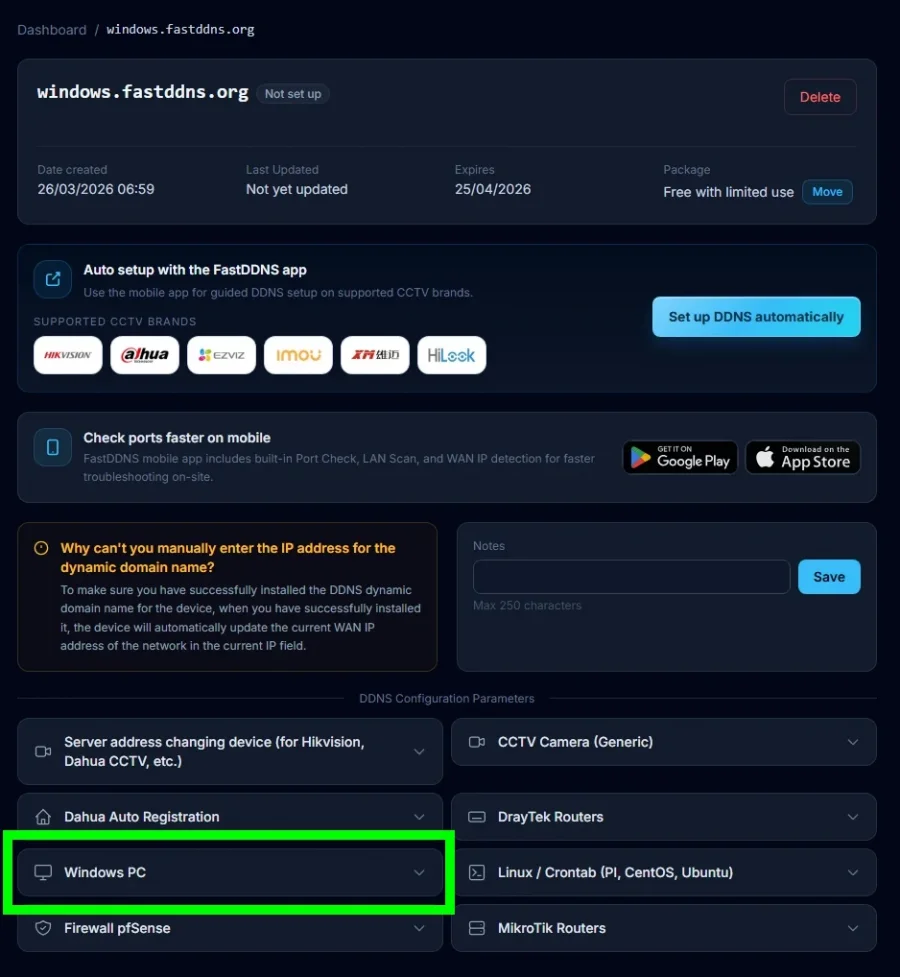
Go to:
👉 DDNS Configuration Parameters → Windows PC
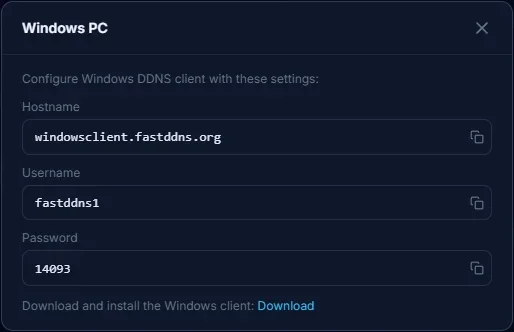
Copy:
- Hostname
- Username
- Password (Key)
Step 2: Download and Install the Client
Download and install FastDDNS Windows Client.
Key advantages:
- Extremely lightweight
- Works on both old and modern systems
Supported Operating Systems
Desktop Windows
| Windows Version | Supported | Notes |
|---|---|---|
| Windows XP SP3 | ✅ | Minimum supported |
| Windows Vista | ✅ | Stable |
| Windows 7 (32/64-bit) | ✅ | Stable |
| Windows 8 / 8.1 | ✅ | Fully supported |
| Windows 10 (32/64/ARM64) | ✅ | WoW64 supported |
| Windows 11 (64/ARM64) | ✅ | Fully compatible |
Windows Server Support
| Windows Server | Supported | Notes |
|---|---|---|
| Server 2003 SP1+ | ✅ | Requires GUI |
| Server 2008 / R2 | ✅ | Desktop Experience |
| Server 2012 / R2 | ✅ | GUI required |
| Server 2016 | ✅ | Desktop Experience |
| Server 2019 | ✅ | Desktop Experience |
| Server 2022 | ✅ | Desktop Experience |
| Server 2025 | ⚠️ | Expected compatible |
Note: Server compatibility depends on Desktop Experience (GUI). Server Core is not supported. Some versions are marked as expected-compatible and may not be fully tested.
Step 3: Log In to the Client
Open FastDDNS Windows Client
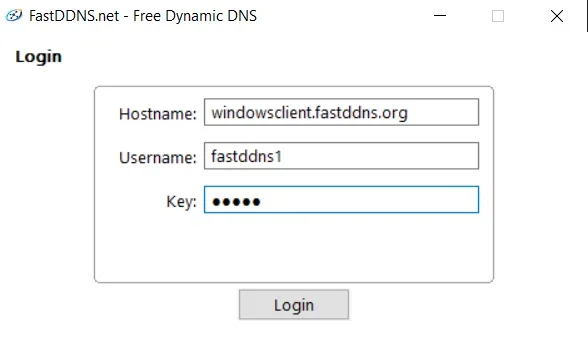
Enter:
- Hostname
- Username
- Key
Click Login
Credentials are stored securely.
Step 4: Verify Status and Updates
After login, you will see:
- Hostname
- Current IP
- Update status
- Next check timer
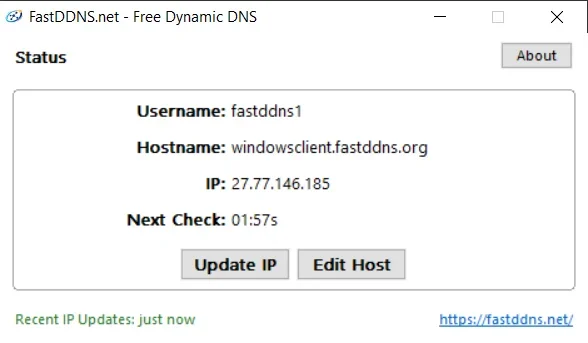
👉 The client:
- Detects IP changes
- Updates automatically
- Keeps your domain always accurate
How the DDNS Update Works
- ISP changes your IP
- FastDDNS Windows Client detects it
- Sends update request
- FastDDNS updates hostname
- Domain points to new IP
👉 Entire process is automatic.
Does It Work Behind CGNAT?
Yes — but with limitations.
In CGNAT environments, your device shares a public IP with multiple users. DDNS will still update correctly, but inbound connections may fail because your router is not directly reachable.
This means:
- DDNS works ✔
- Remote access may fail ❌
👉 Solutions include:
- VPN setup
- Reverse proxy
- Tunnel services
If you're unsure whether you're behind CGNAT, check your WAN IP vs public IP.
Common Problems and Fixes
❌ DDNS Not Updating
- Check credentials carefully
- Restart FastDDNS Windows Client
- Ensure internet connection is stable
❌ Cannot Access Remotely
- Verify port forwarding
- Check firewall rules
- Confirm ISP is not blocking ports
❌ IP Address Incorrect
- Wait for next update cycle
- Click “Update IP” manually
Best Practices for Stable Remote Access
To ensure long-term reliability:
- Keep FastDDNS Windows Client always running
- Disable sleep mode for critical systems
- Use strong authentication credentials
- Periodically verify hostname resolution
👉 Small stability improvements here can prevent major downtime.
Final Thoughts
For most users, a DDNS client is the most practical alternative to a static IP.
Whether you're running Remote Desktop, IP cameras, NVR systems, or self-hosted services, FastDDNS Windows Client ensures your hostname always points to the correct IP — automatically and reliably.
Frequently Asked Questions
What is FastDDNS Windows Client?
A lightweight application that updates your hostname when your IP changes.
Do I need a static IP?
No. DDNS is designed for dynamic IP environments.
How often does it update?
Automatically, whenever your IP changes.
Can it work without router support?
Yes. It works independently of your router.
Is it free?
FastDDNS Windows Client is free to download. FastDDNS also provides a free hostname plan.
What Windows versions are supported?
Windows XP SP3 and newer, including Windows 7, 8, 10, and 11.